Mastering Timeline Zoom-In and Zoom-Out
Freely Switching Between Macroscopic and Microscopic Views
When managing a long-term project spanning months or years, sometimes you need to oversee the entire forest (overall schedule), and other times you need to look at the trees (daily detailed schedule) under a microscope to tune things. Rudia Online Gantt allows you to freely change the scale of the screen in just 1 second through intuitive Zoom buttons located on the toolbar.
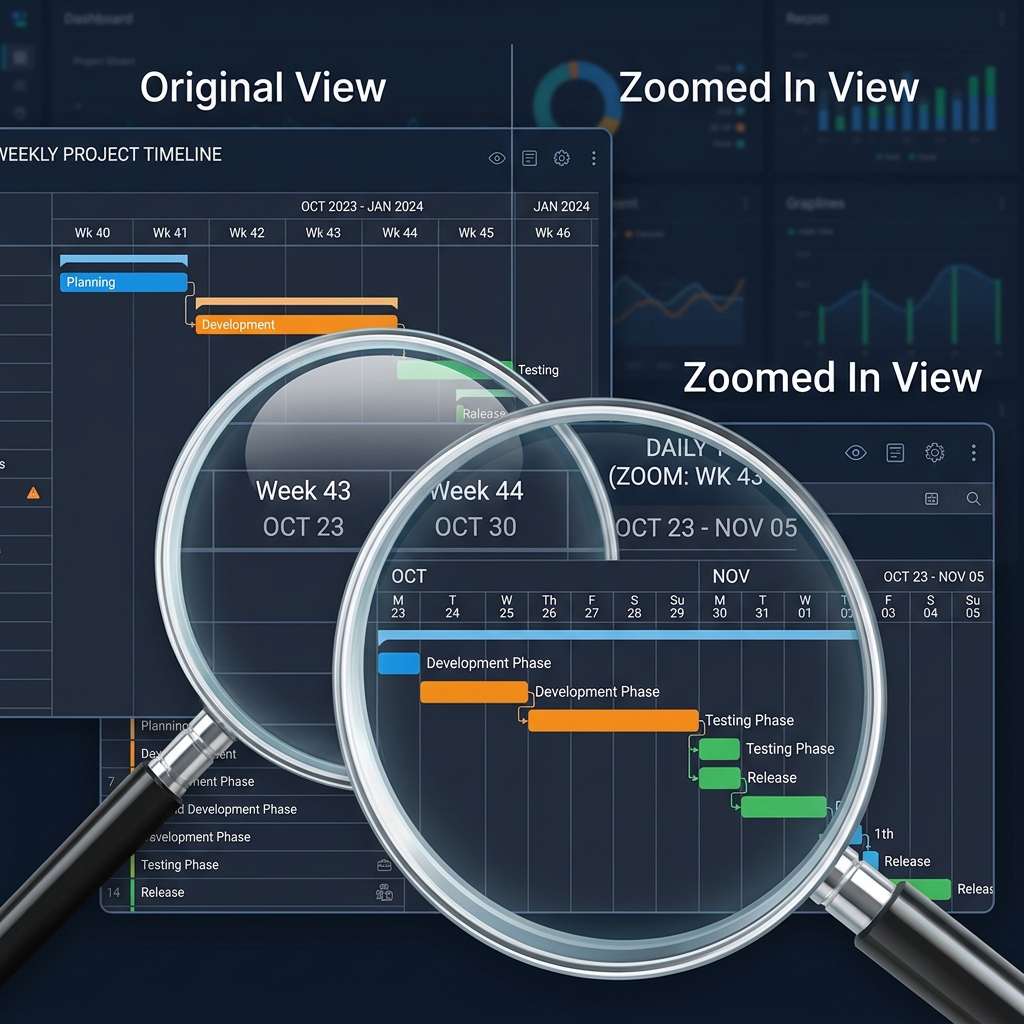
[Figure 7] Timeline scale that flexibly changes into Day, Week, and Month units
3 Levels of Zoom Control
When you press the [+] (Zoom In) and [-] (Zoom Out) buttons on the top toolbar, the timeline header (time axis) re-renders in real time at the following three levels.
| Zoom Level (Scale) | Display Method & Usage |
|---|---|
| 1. Day - Maximum Zoom In | One column in the timeline represents 'One Day'. The top header details the day of the week and date. Essential view when tuning schedules very precisely on a daily basis using drag & drop. |
| 2. Week - Intermediate Step | One column represents 'One Week'. The most frequently used standard view for fitting a 1~3 month mid-term project into one screen for weekly team meetings. |
| 3. Month - Maximum Zoom Out | One column represents 'One Month'. Useful for briefing (reporting) the overall roadmap or milestone flow of a large-scale long-term project spanning several years to executives. |
Smooth Screen Scrolling Experience
Don't worry if the timeline extends far beyond the screen while zoomed in. You can navigate the screen smoothly left and right using the scroll bar at the bottom or using your mouse wheel (or trackpad swipe). Through rendering engine optimization, you can experience seamless 60FPS smooth animation no matter how much you zoom and scroll the screen.