Perfect Compatibility with Excel: Export and Import
Connecting with Excel, the Most Popular Tool
No matter how great a new software is, Microsoft Excel's position in the corporate environment is absolute. The Excel format (.xlsx or .csv) is essential when submitting reports to bosses or linking data with other departments. Rudia Online Gantt accurately recognizes this and has built-in powerful two-way compatibility features with Excel by default.
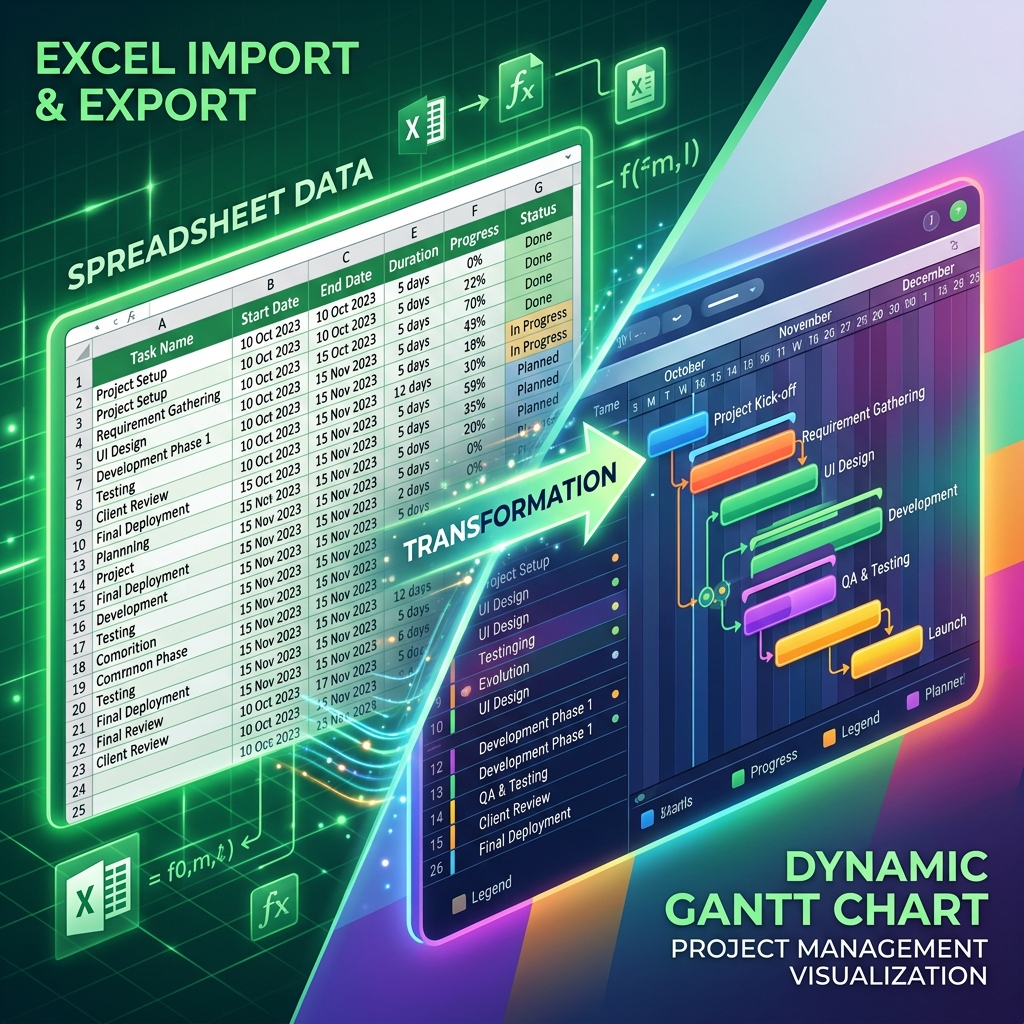
[Figure 9] Seamless interconversion between Excel spreadsheet data and Rudia Gantt
Export to Excel/CSV
You can convert the WBS structure and date data painstakingly created in Rudia Gantt into an Excel file with a single click.
- Method: Click the [Export] button on the top toolbar and select CSV as the format. The downloaded CSV file can be opened immediately in Excel.
- Extracted Data: All text data in the left data grid, such as Task Name (including hierarchy indent levels), Start Date, End Date, Duration, Progress (%), and Predecessor numbers, are accurately mapped to Excel rows and columns.
- Usage: You can share the extracted Excel file with team members or use it as base data to upload to other internal ERP systems.
Import from Excel/CSV
If you have an existing schedule written stiffly only in text in Excel, you can import it into Rudia Gantt and instantly transform it into a visual graphic Gantt chart.
| Import Preparation Step | Detailed Description & Precautions |
|---|---|
| 1. Match Excel File Format | The safest method is to first [Export] sample dummy data from Rudia Gantt as CSV, and then fill in your data matching that file's header row format. |
| 2. Save as CSV Format | Save the finished Excel file via Save As -> CSV (Comma delimited) format. |
| 3. Upload to Rudia Gantt | Click the [Import] button at the top of Rudia Gantt and select the CSV file you just created; the text-only Excel data will resurrect into dozens of colorful timeline bars. |
Freedom of Data Migration
This two-way Excel compatibility feature prevents the lock-in effect where data is dependent on a specific software. You can start Rudia Gantt whenever you want and return to Excel whenever you want. Try uploading that old Excel schedule sleeping in your drawer to Rudia Gantt right now!