Predecessor-Successor Dependency Connection and Auto-Scheduling
What is Dependency?
Just like you can only start building the second floor of a building after the first floor is finished, most project tasks have a logical sequential relationship (dependency) with each other. Rudia Online Gantt supports perfect control over the organic connection between these tasks through an intuitive arrow UI and an Excel-style text input method.
A task that must be performed first is called a Predecessor, and a task that can only begin after the predecessor is completed is called a Successor. When you connect these two, amazing things happen.
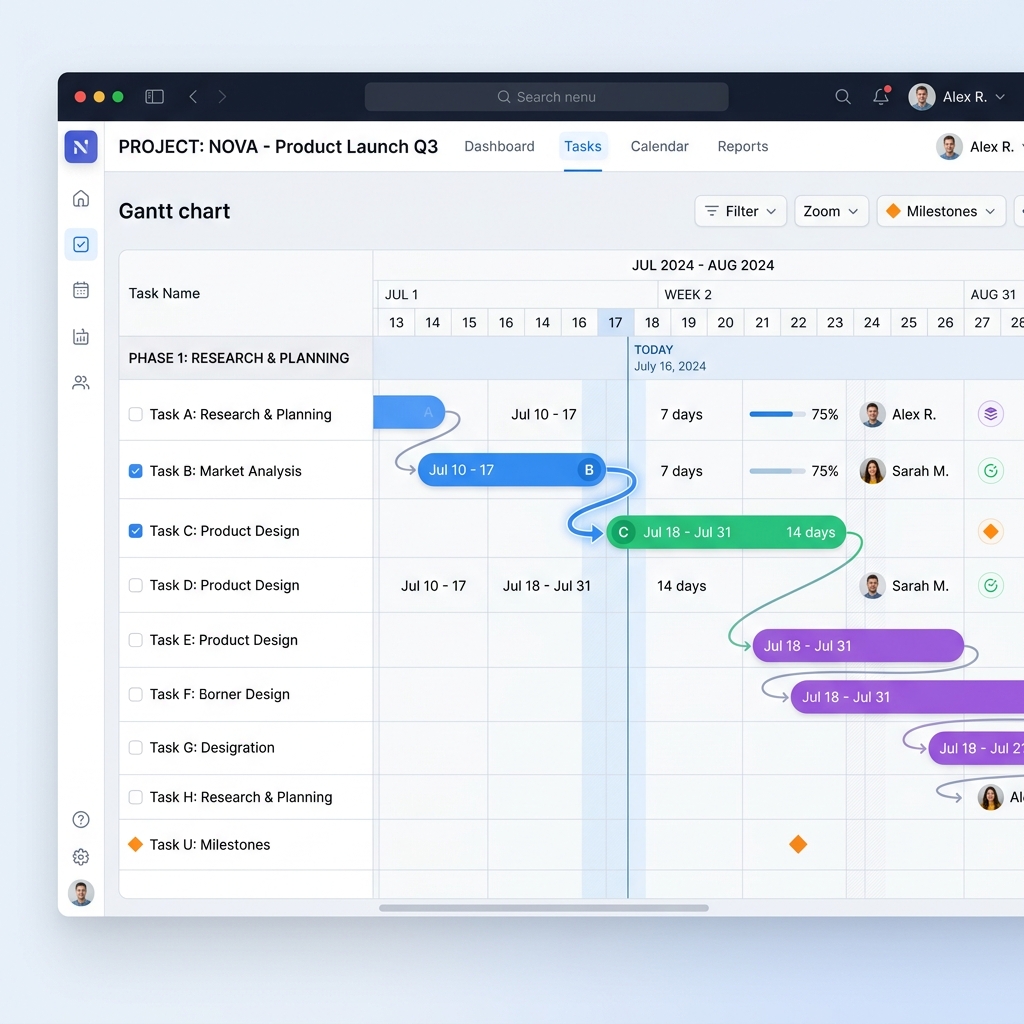
[Figure 4] Smooth arrow connection UI linking the end and start of tasks
Two Ways to Connect Dependencies
We support both an intuitive method using just a mouse and a text method using a keyboard for bulk connecting, tailored to user convenience.
| Connection Method | Usage Details |
|---|---|
| 1. Drawing Lines with Mouse (UI Method) | Hover over the right edge (end point) of the predecessor task bar to reveal a connection node. Click and drag and drop it to the left edge (start point) of the successor task bar to instantly draw an arrow. |
| 2. Direct Row Number Input (Text Method) | In the left data grid, enter the Row Number of the predecessor task as a number in the Predecessor column. For example, if it can start after row 5 finishes, enter the number '5'. |
How Smart Auto-Scheduling Works
Assume an arrow is connected, and the predecessor's schedule is delayed for some reason, so you dragged its bar to the right (into the future). Rudia Gantt's intelligent engine detects this arrow and automatically pushes back the subsequent successor tasks by the amount of days the predecessor was delayed (Auto-Scheduling). Even if dozens of tasks are connected like dominos, the entire schedule is recalculated in the blink of an eye.
This plays a key role in maintaining and managing the project's Critical Path. However, if this feature is bothersome, you can turn off the Auto-Scheduling toggle in the top toolbar to control the schedule manually.