Adding Tasks and Mastering WBS Hierarchy
Adding Tasks and Editing the Grid
Once the project framework is set, it's time to pour out the specific action units needed to achieve the goal: Tasks. The spreadsheet-like data grid on the left side of the screen provides a User Experience (UX) very similar to Excel, allowing anyone to adapt easily.
Press the [+ Add Task] button located at the top of the screen or in the grid area to add a new empty row. Double-click the Task Name column to enter specific work directives like "Build Server Database" or "Sketch Main UI". You can quickly fill in data consecutively using the Enter key or arrow keys on your keyboard.
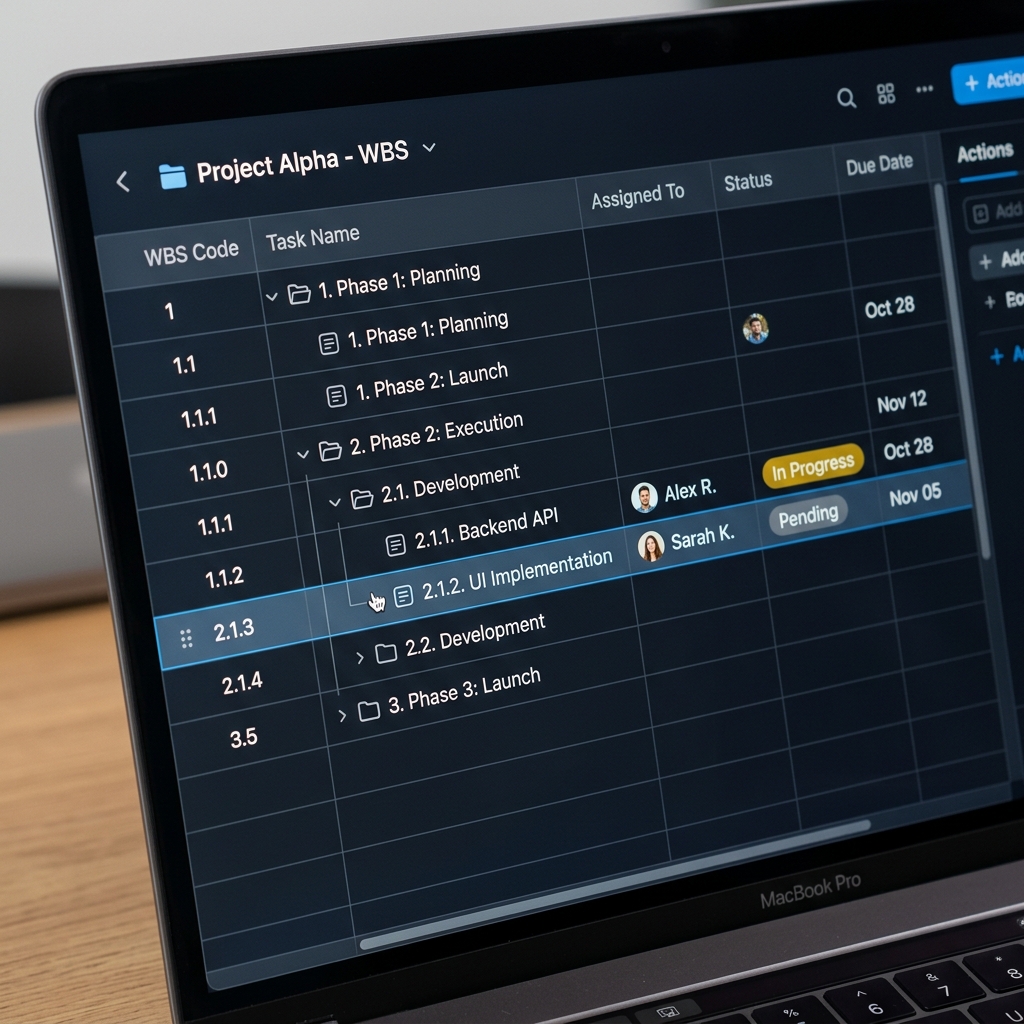
[Figure 2] Parent-child hierarchy formed via the Indent feature
The Magic of Constructing a WBS (Work Breakdown Structure)
Simply listing dozens or hundreds of tasks flatly will not allow you to properly manage a schedule. This is where the WBS Hierarchy comes in, grouping tasks into folders. In Rudia Gantt, you can create a tree structure of infinite depth using just two buttons at the top, without complex setup screens.
| Function Button | Operating Principle & Description |
|---|---|
| Indent Icon: ➡️ |
If you select a specific task and press the Indent button, the task directly above it is automatically promoted to a 'Parent Group', and the selected task tucks underneath it as a 'Child Task'. |
| Outdent Icon: ⬅️ |
Used when a task was accidentally placed in another folder or needs to be moved to a higher level. Select a child task and press this to move it out to the outer level. |
Automatic Roll-up Feature of the Parent Group (Summary Bar)
When child tasks are grouped via indentation, the parent group task is treated very specially on the timeline. The parent group's bar is locked so that its dates cannot be changed by directly dragging it with a mouse.
The reason is that the parent group's start and end dates are automatically calculated (Rolled-up) by the schedules of the numerous child tasks it contains. The earliest start date among the child tasks becomes the parent's start date, and the latest end date becomes the parent's end date, rendering as a thick black Summary Bar on the timeline. Through this, a project manager can accurately grasp the overall duration required for each folder (phase) at a glance.